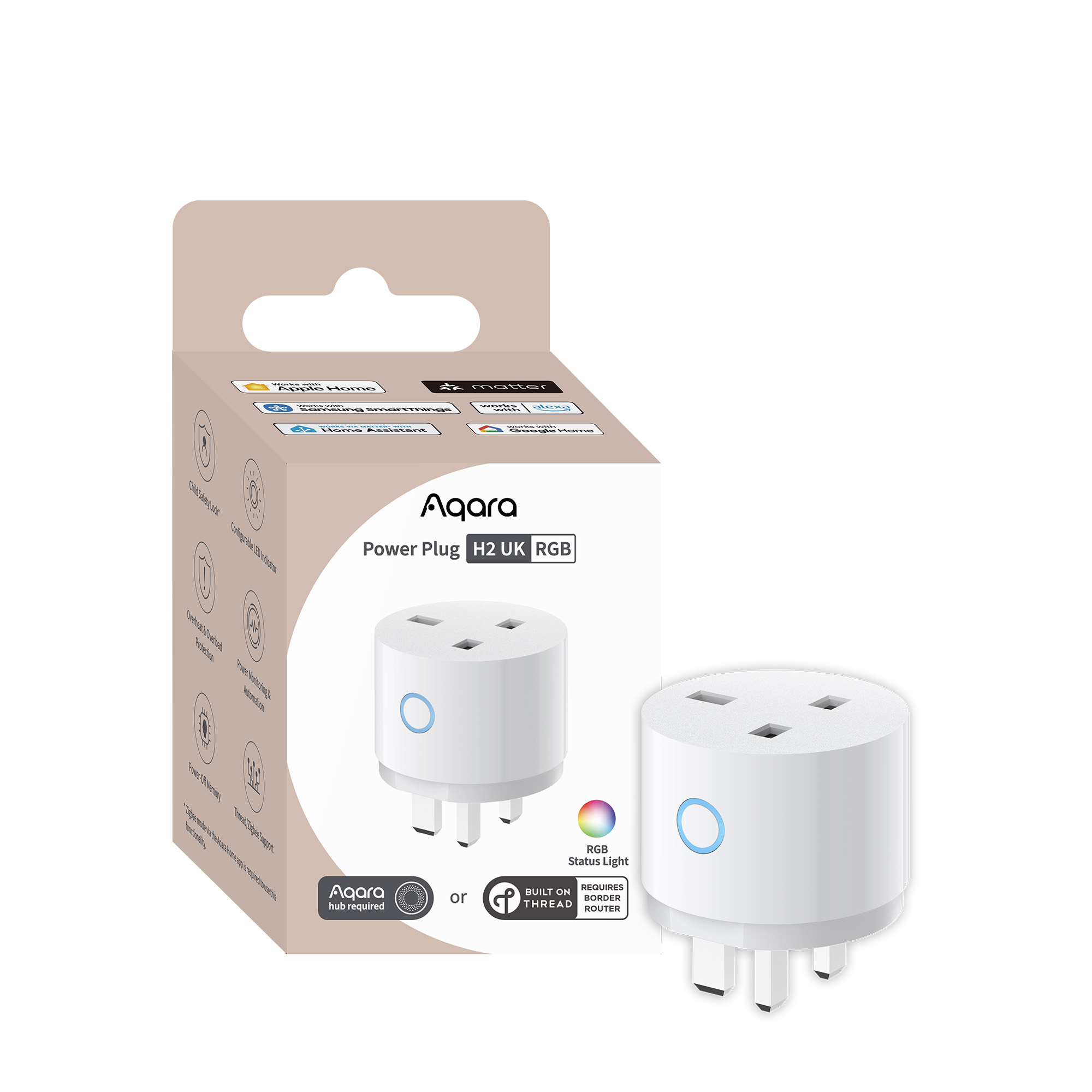
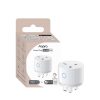

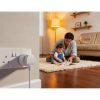
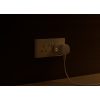
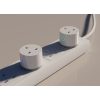
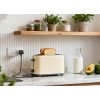
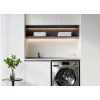
Aqara Power Plug H2 UK (RGB)
Control appliances, monitor energy use and automate your home with the Aqara Power Plug H2 UK, featuring Matter over Thread, Zigbee and RGB feedback.
Compatibility
Aqara Power Plug H2 UK (RGB) is compatible with the following systems:





Original price was: £32.99.£29.99Current price is: £29.99. inc. VAT
Description
Aqara Power Plug H2 UK (RGB)
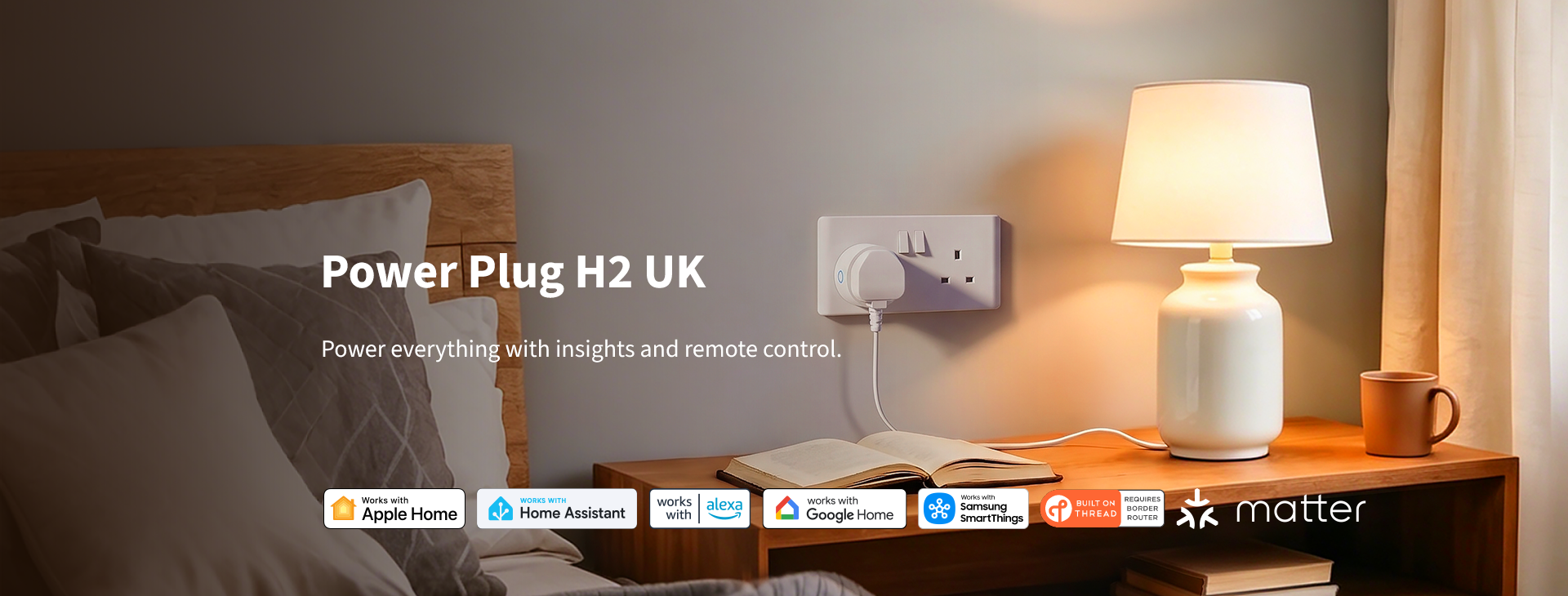
Power everything with insights and remote control
Designed for Type-G outlets, this 13A smart plug safely manages loads up to 3250W, bringing smart control to everything from TV to washing machines. The built-in energy monitoring tracks power consumption in real time, providing the data insights needed to configure energy-saving automations across your smart home ecosystem. With native support for both Matter over Thread and Zigbee, it delivers fast local responsiveness and integrates seamlessly with Apple Home, Home Assistant, Alexa, Google Home and Samsung SmartThings—ensuring a reliable setup.
Aqara Power Plug H2 UK (RGB) Features:
- Two Protocols, No Compromise: Featuring dual-protocol support, this device lets you switch between modes based on your preference. Choose Thread mode for a hub-free connection to third-party Matter ecosystems, or Zigbee mode for exclusive Aqara features. It remains fully backward-compatible with classic Aqara Zigbee hubs without sacrificing Matter functionality.
- Color Coded Energy Feedback:Track everything from live power usage to monthly targets with a dynamic color spectrum that simplifies complex data into an instant visual glance. The built-in RGB LED also works as a fully adjustable smart light via Matter — though its full color-sensing feedback suite requires Zigbee mode and an Aqara hub.
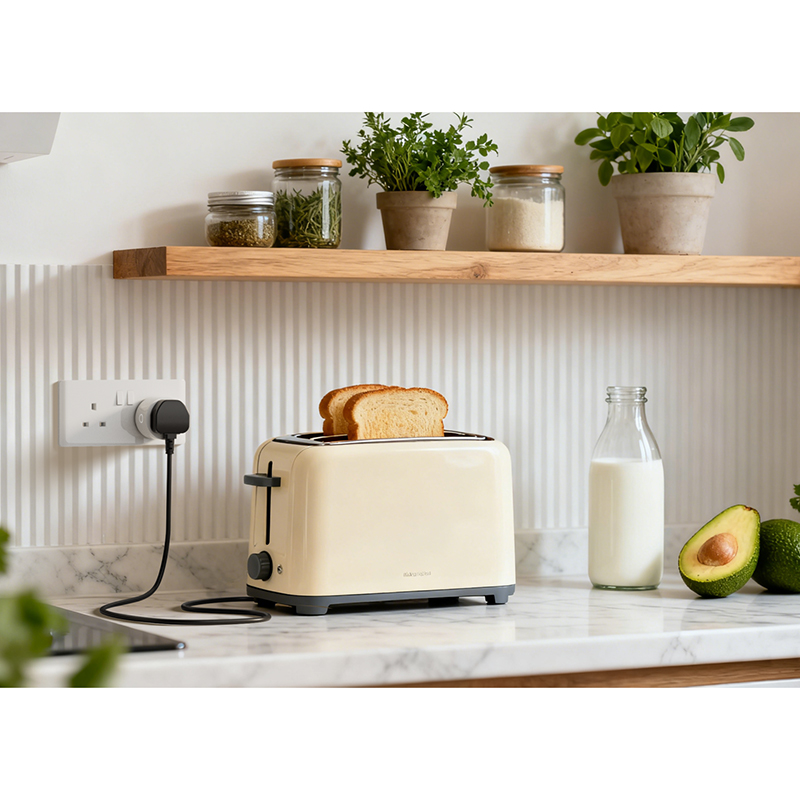
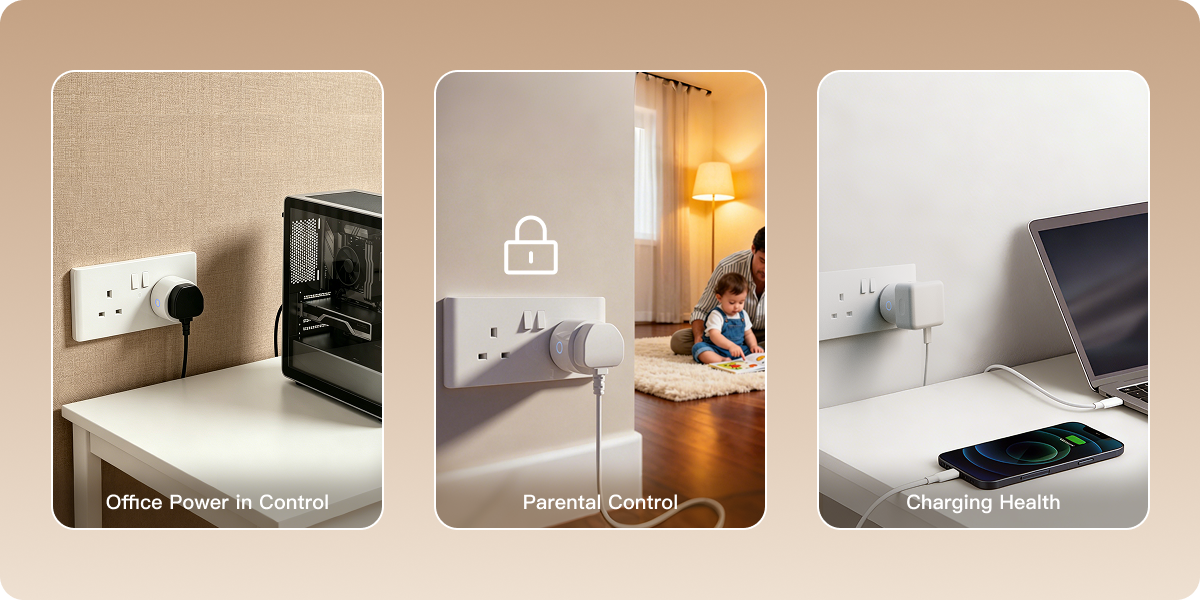
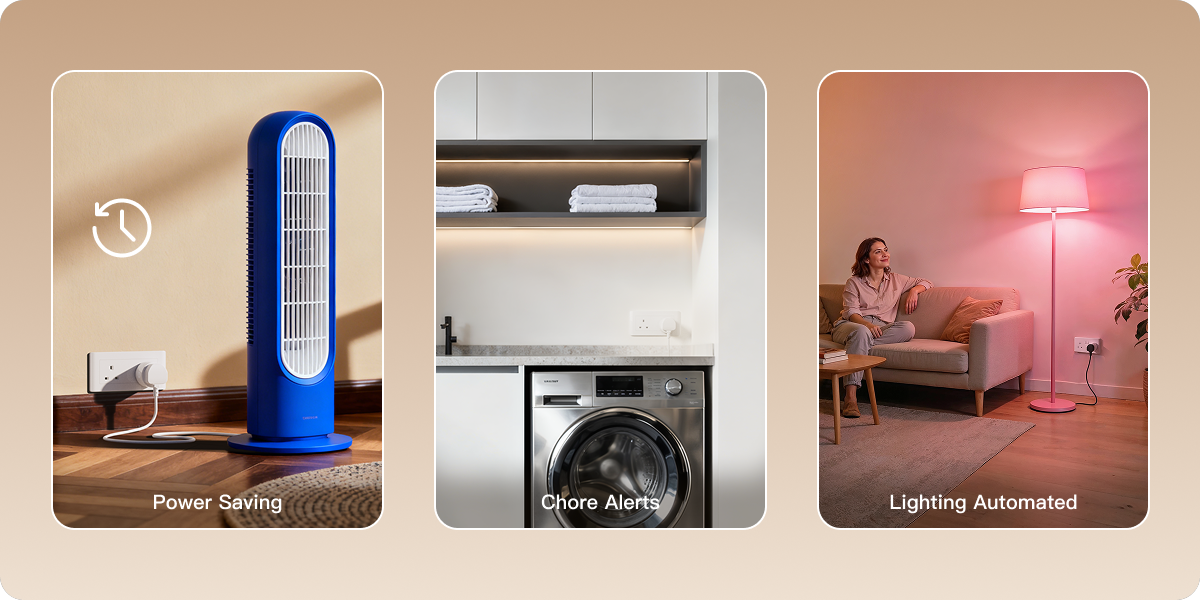
- Make Your Everyday Appliances Smarter: Upgrade to a smarter, more efficient home. Whether it’s automating your morning coffee or upgrading traditional lights, these plugs streamline daily chores and equip your existing appliances with remote-control functionality.
- Insightful Data You Can Use: Smart automation meets instant savings. Track your power, automate your devices, and shut down idle tech (like your PC or TV) to save £5-10 a month on standby waste.
- Never Waste an Outlet: Featuring a sleek, low-profile design, it won’t crowd neighbouring outlets, allowing you to fully utilise every single wall socket. It’s the ideal space-saving solution for households with a shortage of plug options.
- Safety That Reacts: The built-in child lock keeps curious little hands safe by preventing accidental presses. Meanwhile, its automatic shut-off triggers instantly during overloads or overheating—protecting your home from electrical hazards completely hands-free.
- To use the device with a particular Matter ecosystem, a Thread-enabled Matter Controller of this ecosystem is required. For Zigbee mode, Aqara Zigbee hub is required.
- When charging protection is enabled, plug automatically shuts off after 30 minutes of power draw below 3W.
- For the child lock function, the button on outlet can still be used to trigger a network or factory reset. To completely disable all button triggering using Zigbee protocol, enable Accidental Removal Protection in the settings of the Aqara hub connected.
- Zigbee mode and Aqara hub are required to achieve the remote control, load limit setting, LED light in automation, subtle LED configuration functionalities.
Key Features at a Glance


Two Protocols, No Compromise
The device features dual protocol support: in Thread mode, no hub is required to connect to third-party Matter ecosystems*, while Zigbee mode** allows for exclusive Aqara functionalities. It also supports backward compatibility with the classic Aqara Zigbee hubs without compromising Matter support. You can switch between desired protocols based on preference.

Connect to all major platforms as long as you have a Matter controller and a Thread border router.

Keep your setup and expand your options: Zigbee works with existing Aqara hubs for easy, reliable integration, and you can bring this device into your preferred ecosystems via Matter Bridging (using the same Aqara Hub) for immediate cross-platform control.

Your smart home mesh shouldn't stop at walls. The plug never sleeps, so it never stops relaying. It serves as a Zigbee/Thread router node and automatically extends coverage without any user setup.
*To use the device with a particular Matter ecosystem, a Thread-enabled Matter Controller of this ecosystem is required.
**Aqara Zigbee hub required.
Smarter On/Off for your Everyday Appliances
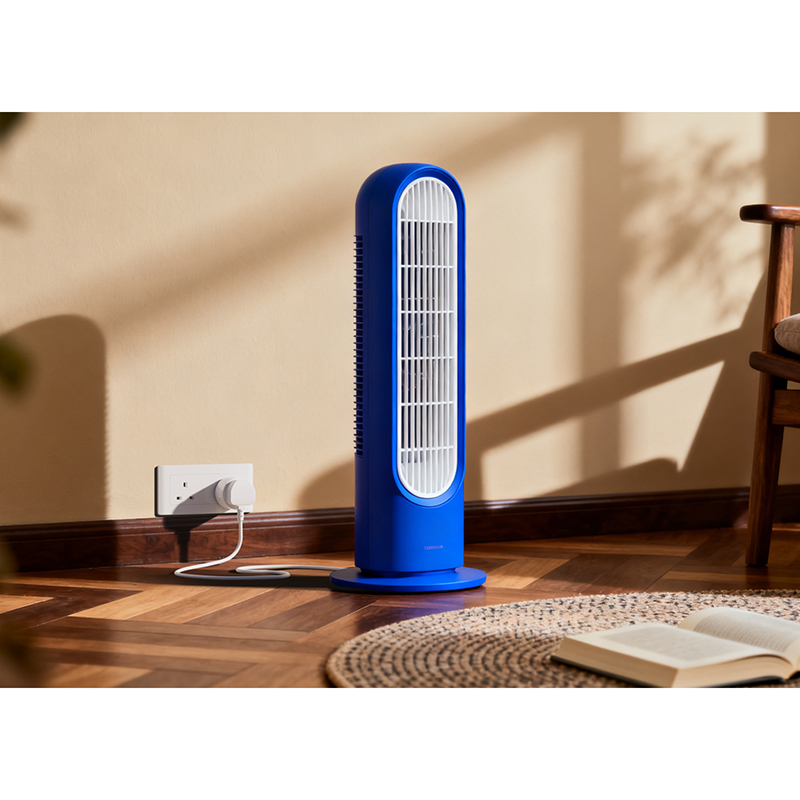
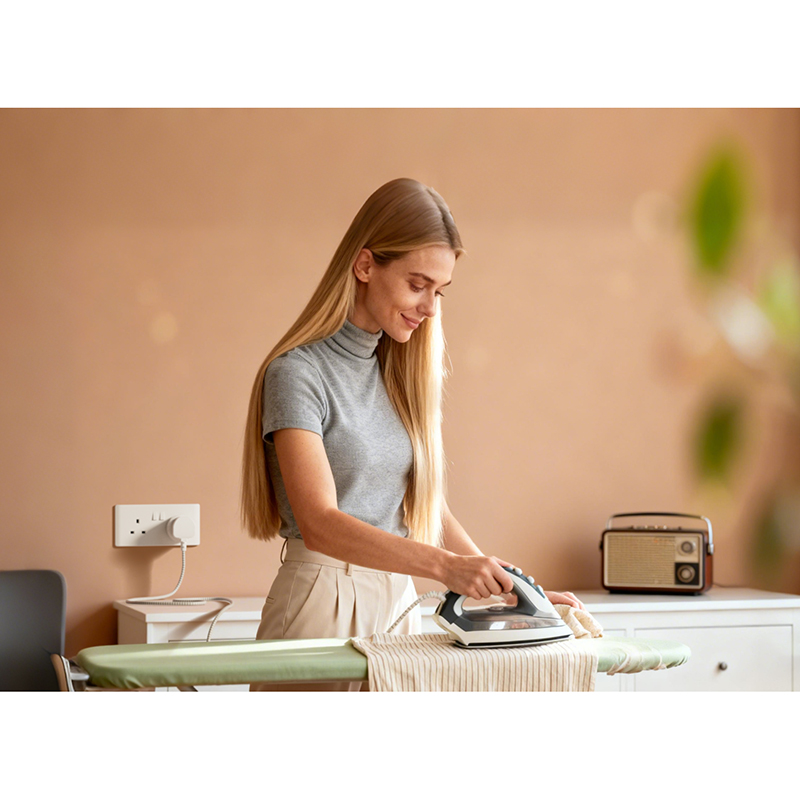
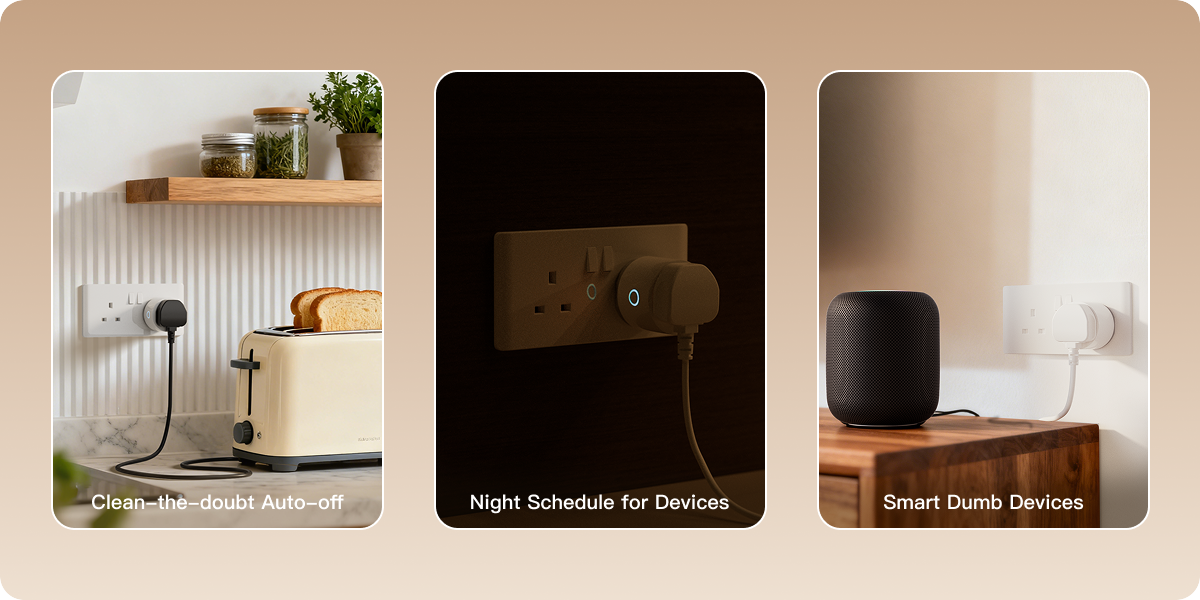
Create a smarter, more efficient home. From brewing coffee as you wake, to making your dumb lights smart, these plugs automate chores and enhance your existing products through remotely controlling their on/off.


Insightful Data You Can Use
Turn power insights into action and automate device behaviour based on energy use. Turn off your kettle, TV and your PC while they're no longer in use, helping to cut wasted energy and lower your monthly bills*.


*Savings vary by device, usage and local energy rates.
Never Waste an Outlet
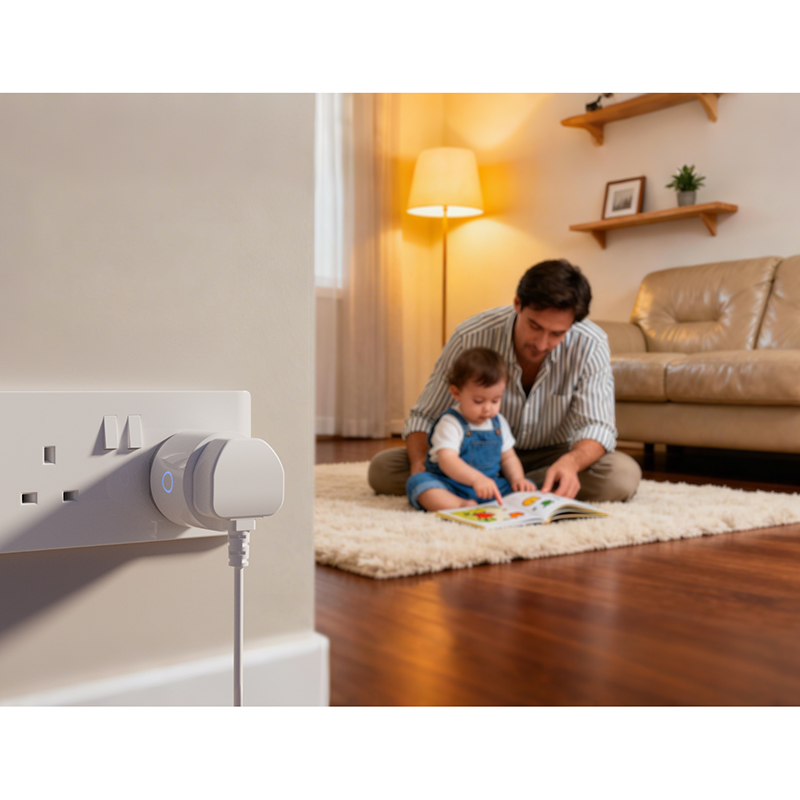
The slim design won't block adjacent outlets in general, making the most of every wall socket, perfect for homes with a shortage of plugs.

Safety That Reacts
Prevent accidental button presses with the child lock. Overload and overheat protection cuts power automatically; stay safe and prevent electrical hazards without lifting a finger.

No more tripped plugs on high-power devices. Works with every appliance in your home, handling the full 13A your socket delivers.

- Function:
Disabled by default. When enabled, the physical button* on the outlet is disabled**, preventing it from toggling the plug on or off. - Remote Control:
When enabled, users can still gain control via automation, app or voice commands.

The outlet will automatically turn off when overloaded or if the temperature reaches 80°C or higher.

The maximum power on each socket is configurable***, your devices stay within a safe energy range at all times.
*The button can still be used to trigger a network or factory reset.
**If you want to completely disable all triggering, you can use device removal protection (only using Zigbee).
***Zigbee mode and Aqara Hub are required to achieve this functionality.
Configurable Status Light
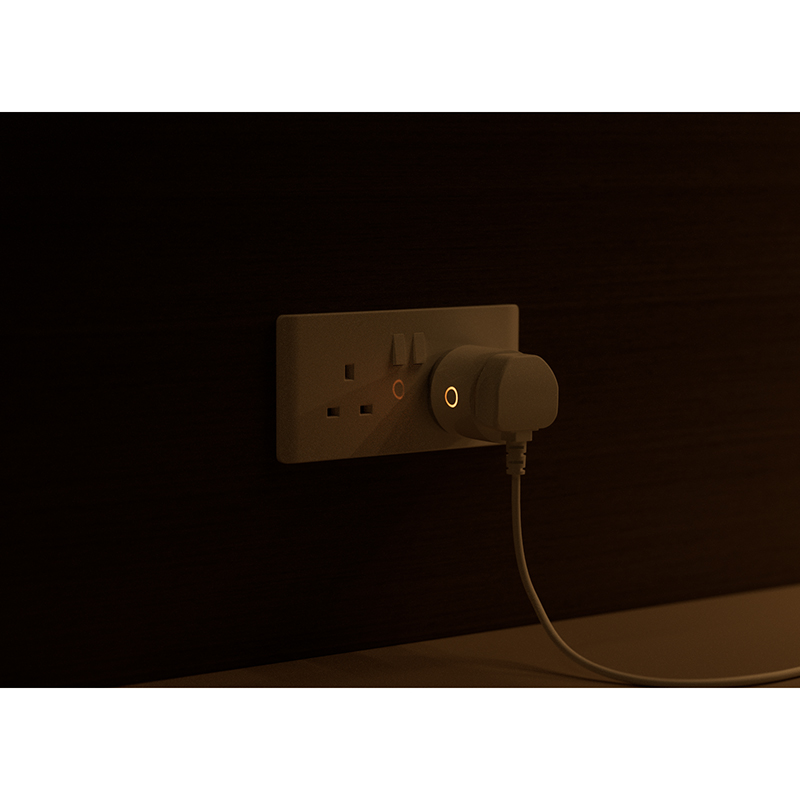
Customise the indicator light to match your switch state, or turn it off entirely for a clean, distraction-free look. Ideal for bedrooms, theatres, or anywhere you value peace and darkness.

"Turn on/off indicator light" serves as a THEN automation.

When enabled, LED can sync with switch state, or reverse. When disabled,
the indicator light will stay off.
*Zigbee mode and Aqara Hub are required for this functionality.
Colour Coded Energy Feedback
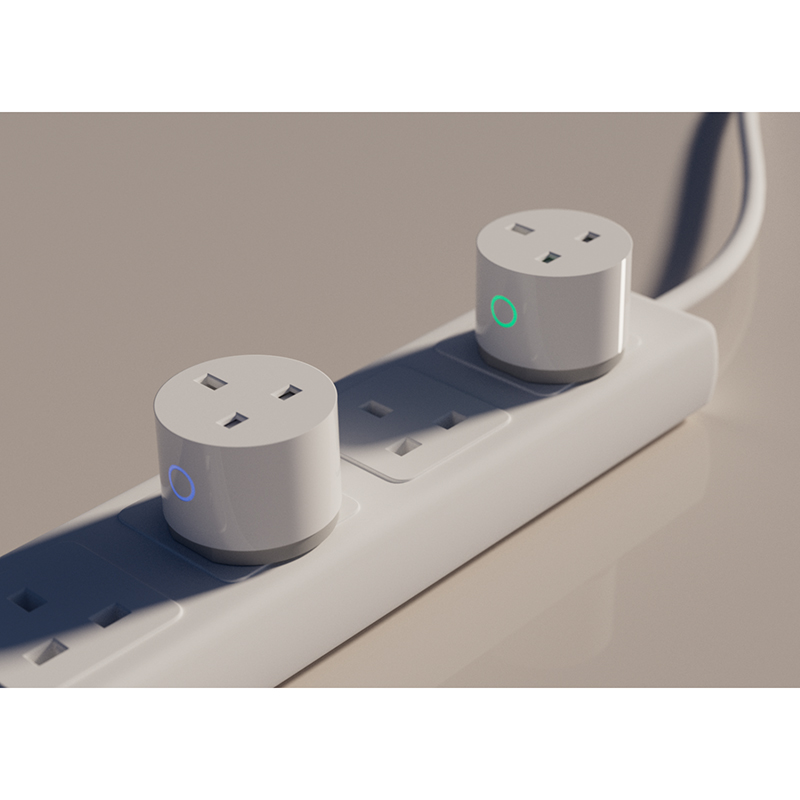
From real-time power to monthly goals, stay informed with a dynamic spectrum that turns complex data into simple colours you can understand at a glance.

Freely adjust colour, brightness and lighting effects via a full-colour palette, just like Aqara's RGB smart lights. Create the perfect ambiance to match your mood or scene.

Uses LED colour spectrum to provide instant visual feedback on your
current energy use.

The LED acts as a visual progress bar for your long-term consumption.

Colour coded automation at your fingertips. Assign any colour to your
smart routines and receive visual alerts for emergencies, reminders
or any moment that matters.
*Zigbee mode and Aqara Hub are required for this functionality.
Smart Automations

WHEN It is Wake Time (e.g. 07:30)
IF Presence is detected in the living room
THEN Turn on plug (coffee maker) for a set time (e.g. 15-30 mins)

WHEN Washing machine power drops below a set wattage for 5 minutes
(indicating a finished cycle)
IF Presence is detected in the bedroom or living room
THEN Send a notification to your phone "Laundry is done"
Frequently Asked Questions
What is the default protocol of the Power Plug H2 UK?
The default protocol is Matter over Thread. Note: Factory reset or reset will not change the current protocol.
How do I identify the current communication protocol?
While pairing the device, identify the current protocol by checking the LED indicator light:
- Blue flashing: Matter protocol
- Purple flashing: Zigbee protocol
- Red: Pairing timeout
Then, after the device is paired, in Aqara Home you can go to the device home page > tap the “…” in the upper right corner > Go to General Settings > go to Device Communication Protocol to view the current protocol.
How to switch the protocol from Thread to Zigbee?
Install the Aqara Home app, and enable Wi-Fi and Bluetooth.
Restore the device to factory settings (press any button 10 times continuously) or reset it (press any button twice continuously, then press and hold for 5s within 3s) to enter network configuration mode (first-time device setup will automatically enter network configuration mode), and the indicator light will slowly flash.
In the Aqara Home app, tap “Add Accessory”, scan the Matter code on the button, select Zigbee in the “Switch Protocol” page, and follow the app instructions to complete setup.
How to switch the protocol from Zigbee to Thread?
Install the Aqara Home app and enable Wi-Fi and Bluetooth.
Perform a factory reset on the device (press any button 10 times consecutively) or reset (press any button twice consecutively, then press and hold for 5 seconds within 3 seconds), then enter pairing mode.
In the Aqara Home app, tap “Add Accessory,” bring your phone close to the device, and Power Plug H2 EU will appear in the upper left of the app. Tap the icon, select Thread on the “Switch Protocol” page, and follow the app’s instructions to complete the setup.
How to connect the Power Plug H2 UK to your phone?
Using devices in a specific Matter ecosystem (Thread mode). Requires a Matter controller and Thread border router for that ecosystem:
- Double press any button, then press and hold for 5 seconds until the blue indicator light starts flashing, indicating the device has entered pairing mode.
- Open a Matter-compatible app, scan the Matter code on the manual or product, or enter the setup code to add the device to the app.
- Follow the app’s instructions to complete the setup.
Requires an Aqara Hub with border router capability (such as Hub M3/M100/M200/G410/G5 pro, etc.):
- Double press any button, then press and Using devices in Aqara Home (Thread mode) hold for 5 seconds until the blue indicator light starts flashing, indicating the device has entered pairing mode.
- In the Aqara Home app, tap “Add Accessory,” select Power Plug H2 EU, scan the Matter code on the manual or product, or enter the setup code to add the device to the app, and select Thread on the “Switch Protocol” page.
- Follow the app’s instructions to complete the setup.
Using devices in Aqara Home (Zigbee mode). Requires an Aqara Zigbee Hub:
- Double press any button, then press and hold for 5 seconds until the blue indicator light starts flashing, indicating the device has entered pairing mode.
- In the Aqara Home app, tap “Add Accessory,” bring your phone close to the device, and Power Plug H2 EU will appear in the upper left of the app. Tap the icon and select Zigbee on the “Switch Protocol” page.
- Follow the app’s instructions to complete the setup.
How to reset Power Plug H2 UK?
Double-click any button and then press and hold for 5s within 3 seconds, the indicator light will flash quickly to indicate successful reset. Removing the device has the same result as resetting.
How do I perform a factory reset?
Press any button 10 times continuously until the blue indicator light starts flashing, indicating the device has entered network configuration mode.
What's the difference between factory reset and device reset?
Reset only clears the device’s network configuration information, while other configuration items are retained; Factory reset clears both network information and configuration information, restoring the device to its factory state.
Does Power Plug H2 UK have over-heating and overload protection functions?
Power Plug H2 UK supports over-heating and overload protection functions.
What security measures can ensure the safe use of the outlet ?
In Zigbee mode, the outlet supports maximum power setting; in Matter mode, the maximum power defaults to 3250W. When power exceeds the maximum set power, it will trigger overload protection and the device will automatically turn off the relay to ensure safety. (To avoid false triggering, the actual trigger value may increase by 5%).
Both Matter and Zigbee can trigger additional protection measures through power-related Automation configurations.
How to confirm if the connection between Aqara Power Plug H2 UK and the Aqara Hub is stable?
Triple-press any button three times. If the Hub gives a voice prompt “Connection normal, confirmed”, it means the connection between the smart outlet and the Hub is stable. If there is no voice prompt, move the smart outlet closer to the Hub and try again.
What if the H2 EU (using Thread protocol) cannot be connected to the Aqara hub?
- Update Aqara Home and Aqara Hub OTA to the latest version
- Check if your phone and the preferred Matter Controller are on the same LAN
- Have you set the Aqara Hub as the preferred Matter Controller? Setting method: Go to the Hub device homepage > press “…” in the upper right corner > Matter Controller > Set preferred Matter Controller
- Try restarting the Hub. Setting method: Go to the Hub device homepage > press “…” in the upper right corner > Reboot device
- If it still doesn’t work, try creating a new Thread network. Setting method: Go to the Hub device homepage > press “…” in the upper right corner > Network information > Change Thread network > Switch or create a new Thread network
What is the difference between Power Plug H2 UK (RGB) and Power Plug H2 UK?
Power Plug H2 UK (RGB) indicator light supports color adjustment and supports power consumption indication and wattage indication functions. As the appliance’s power consumption and wattage increase, the indicator light displays different lighting effects. Other functions of Power Plug H2 UK (RGB) are the same as Power Plug H2 UK.
What precautions should be taken when using the power plug?
Do not use power plugs in series, that is, do not plug one power plug into another power plug.
Do not connect plug-type sockets or adapters (such as multi-outlet plugs, plug-type power strips, etc.) to the power plug
What devices can I connect? What are some common and practical use scenarios?
Safety protection: When the device operates abnormally causing the power plug to overheat or overload, it can automatically cut off power, reducing safety risks.
Energy saving: Automatically cuts off power to devices in standby mode, eliminating standby power consumption. You can also monitor home appliance usage through power consumption and wattage metering.
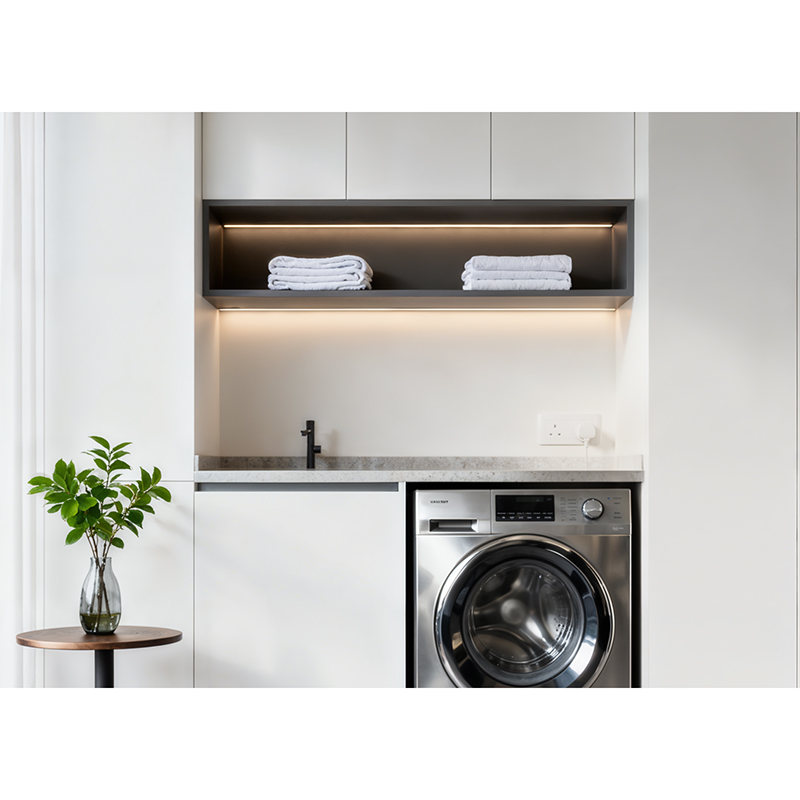
Automation control: Set timed on/off for devices such as chargers to avoid overcharging and improve convenience. Determine whether devices such as washing machines have completed work through power changes and send reminders.
How to unlock when the button child lock is enabled?
1) You can cancel the child lock through the App
2) If you want to unlock using the device button, you need to reset (press any button twice continuously, then press and hold for 5s within 3s) to unlock
Videos
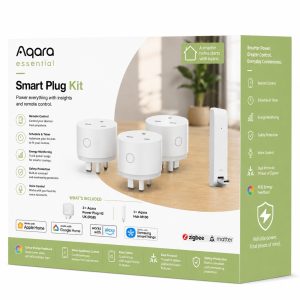
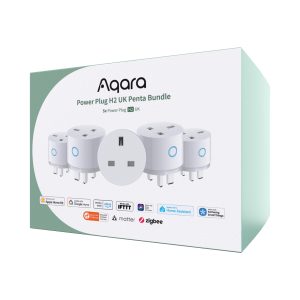
Save money with these kits!
Product Specifications
Misc Product Attributes | |||||||||||||||||||||
|---|---|---|---|---|---|---|---|---|---|---|---|---|---|---|---|---|---|---|---|---|---|
Specifications:
| |||||||||||||||||||||
You may also like…
-
9% OFF!

Aqara Essential Smart Plug Kit
Original price was: £109.98.£99.98Current price is: £99.98. inc. VAT Add to basket -
Aqara Wall Outlet H2 UK (Dual USB-C)
£69.98 inc. VAT Add to basket -
Aqara Essential Smart Socket Kit
£129.98 inc. VAT Add to basket -
4% OFF!
Aqara Power Plug H2 UK (RGB) Penta Bundle
Original price was: £149.99.£143.99Current price is: £143.99. inc. VAT Add to basket